Quick answer: Pick what the code should do (open a link, join Wi-Fi, show text, email or call), generate it with a free QR code generator, keep dark modules on a light background with a clear margin around the code, print it at least about 2 × 2 cm, and test it with more than one phone before printing.
QR codes connect printed material to your website, menu, Wi-Fi or contact details. Making one takes seconds with the free QR Code Generator — making one that scans reliably takes a few extra checks.
1. Choose what the QR code does
- Link (URL): opens a web page — the most common use.
- Wi-Fi: lets guests join your network without typing the password.
- Text: shows a short message.
- Email or phone: starts an email or a call.
2. Generate the code
- Open the QR Code Generator and choose the type.
- Enter your link, Wi-Fi details or text.
- Download the image.
Codes made this way are static: the content is stored in the pattern itself, so the code keeps working as long as the link or details inside it stay valid. If you might change the destination later, point the code at a page on your own website that you can update.
3. Design it so it scans
- Contrast: dark code on a light background. Avoid light-on-dark and low-contrast colour pairs.
- Quiet zone: leave a clear margin around the code — the QR standard calls for four modules (squares) of empty space.
- Size: for print, about 2 × 2 cm is a common practical minimum; make it larger if people will scan from further away.
- Keep it short: shorter links create simpler codes that scan more easily.
- Error correction: higher levels (up to about 30% damage tolerance) help if the code may get scratched or partly covered, but make the pattern denser.
4. Test before you print
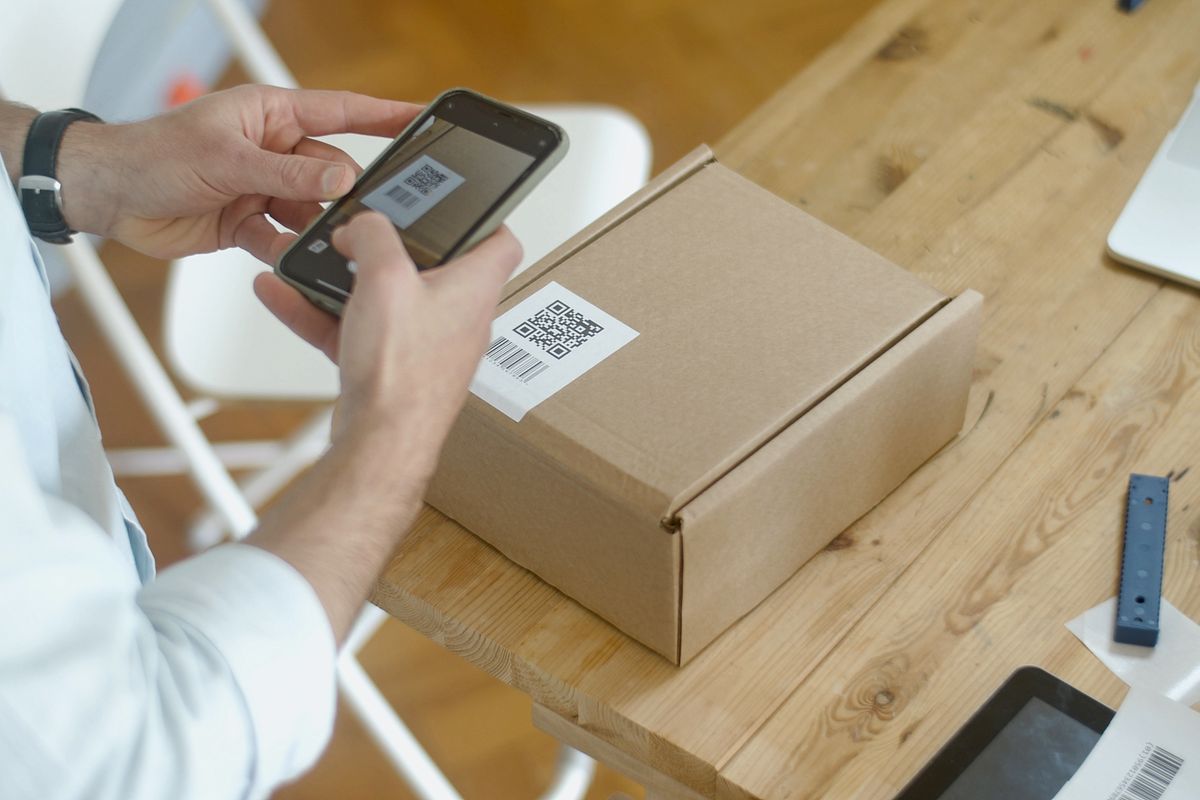
Scan the code with at least two different phones, in normal light, from the distance people will actually use. You can also check a downloaded code with the QR Code Scanner, which reads codes from an image or screenshot.
Staying safe with QR codes
- Check the link a code shows before opening it, especially on stickers in public places.
- For Wi-Fi codes, consider a separate guest network and a strong password from the Password Generator — see our guide to creating strong passwords.
Examples: what each QR type contains
A QR code simply stores text. Your phone decides what to do based on how that text starts. Here is what the QR Code Generator writes for the most common types:
- Website:
https://example.com/menu— opens the page. - Wi-Fi:
WIFI:T:WPA;S:CafeGuest;P:your-password;;— the phone offers to join the network without typing the password. - Contact card (vCard): starts with
BEGIN:VCARDand holds your name, phone, email, company and website — the phone offers to save the contact. - WhatsApp:
https://wa.me/923001234567?text=Hi— opens a chat with a ready-made message (use the full number with country code, no + or spaces). - Email or SMS:
mailto:andSMSTO:codes open a new message with the address and text already filled in.
The shorter the content, the simpler and easier to scan the code will be. For long text, link to a web page instead of putting everything inside the code.
How big should a printed QR code be?
A practical rule is that the code should be at least one-tenth of the scanning distance. For example:
- Business card or product label (scanned from about 20 cm): at least 2 × 2 cm.
- Table tent or flyer (about 50 cm): around 5 × 5 cm.
- Poster on a wall (about 2 m): around 20 × 20 cm.
Always leave a blank margin (the “quiet zone”) of about four modules around the code, keep strong contrast (dark code on a light background) and export as SVG for print so the edges stay sharp at any size.
Error correction levels explained
QR codes contain spare data so they still scan when part of the code is dirty or covered. There are four levels: L (about 7% can be damaged), M (about 15%), Q (about 25%) and H (about 30%). Higher levels make the code denser. Use M for most screen and paper uses, and H if you plan to place a small logo in the middle or print on surfaces that may get scratched.
Frequently asked questions
Do QR codes from this generator expire?
No. They are static codes: the content is stored inside the image itself, so they keep working for as long as the link or details inside them stay valid. There is no subscription and no redirect server that can be switched off.
Can I change the link after printing?
Not with a static code — the link is part of the pattern. If you think the destination may change, point the code at a page on your own website that you control, and update that page instead.
Can I use these QR codes for my business?
Yes. The codes are free to use on menus, packaging, business cards, flyers and shop windows, with no watermark and no attribution required.
How much data can one QR code hold?
The largest QR version holds up to about 4,296 letters and numbers or 2,953 bytes of other text at the lowest error correction level. In practice, keep it far shorter: smaller codes scan faster and more reliably.
Explore all free productivity tools.
Keep reading: related guides
This guide is part of our free productivity tools collection. Browse all free online tools or the full guide library.